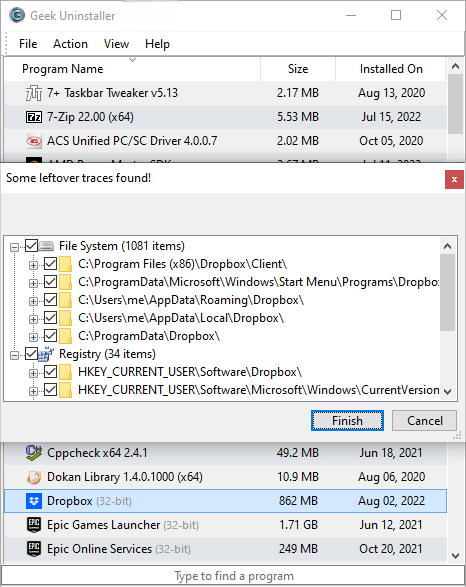
Short definitions for mixed audiences and multilingual search. Cross-linked ideas, not dictionary perfection.
- AppX / MSIX
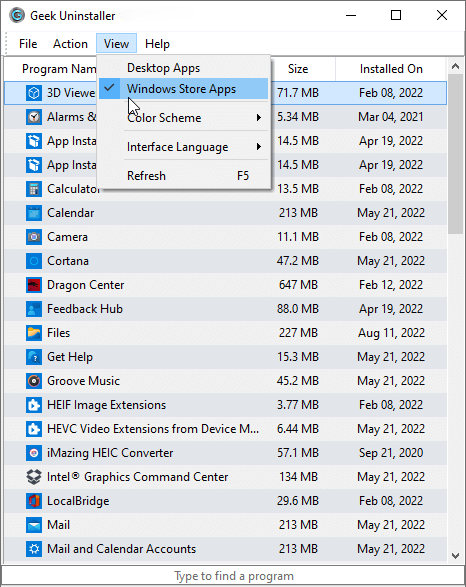
- Packaged app formats on modern Windows; lifecycle differs from classic EXE installers.
- COM registration
- Component Object Model entries letting apps expose objects to each other—shared risk during cleanup.
- Clean removal
- Vendor uninstall first, then targeted leftover scan—safer than brute force.
- Force removal
- Rescue path for broken installs where normal uninstall fails or is missing.
- Provisioning
- Pre-installing apps for new user profiles—common in enterprise and OEM images.
- Win32
- Traditional desktop executables vs Store-packaged apps—different uninstall plumbing.
- WOW64
- Windows-on-Windows 64-bit compatibility layer—32-bit uninstall stubs still matter.
- Shell extension
- Context menu handlers in Explorer—can linger after app removal.
- Service
- Long-running background process; removing binaries without stopping services risks locks.
- Driver
- Kernel-mode code—uninstall via Device Manager or vendor tools, not random deletes.
- Minifilter
- Antivirus and backup drivers interposed in the filesystem—ordering matters.
- UAC
- User Account Control elevation prompts—expect them when touching protected areas.
- SmartScreen
- Reputation-based warnings for new downloads—can block portable tools until allowed.
- SID
- Security Identifier—per-user hives and permissions hinge on SIDs.
- Startup impact
- Measured delay from autostart entries—distinct from uninstall completeness.
- Scheduled task
- Triggers for updates and telemetry—may survive uninstall if mis-registered.
- Redistributable
- Shared runtime (e.g., VC++)—often required by multiple apps.
- WinSxS
- Side-by-side assembly store—do not manually nuke to “save space” without guidance.
- Package cache
- MSI and installer caches used for repairs—large but sometimes necessary.
- Orphan key
- Registry data left after incomplete uninstall—verify before deleting.
- Portable app
- Runs without traditional installer registration—may lack uninstall entries by design.
- winget
- Windows Package Manager CLI—complements GUI uninstallers for scripted workflows.
- DISM
- Deployment Image Servicing and Management—OS features, not random apps.
- Restore point
- Rollback snapshot—useful before aggressive cleanup on consumer Windows editions.
- Telemetry
- Diagnostic data—distinct from uninstall mechanics but relevant to trust models.
- False positive
- Antivirus flag on benign files—common for niche utilities and packers.